Terminal > More Features
Markdown Viewer
# Markdown Viewer import DemoVideo from '@components/DemoVideo.astro'; import { Tabs, TabItem } from '@astrojs/starlight/components'; Warp can be used for both editing and viewing rendered Markdown files in a [split pane](/terminal/windows/split-panes/). Any local file with the `.md` or `.markdown` extension is treated as a Markdown file. Remote files are currently not supported. Turning on **Settings** > **Features** > **General** > **Open Markdown files in Warp's Markdown viewer by default** will make the Markdown viewer default, otherwise Markdown files will open in Warp's editor. ### Opening a file link within a block <Tabs> <TabItem label="macOS"> For any link to a Markdown file within a block, you can open the file in Warp by `CMD`-clicking on the link, from the link tooltip, or the right-click context menu on the link. </TabItem> <TabItem label="Windows"> For any link to a Markdown file within a block, you can open the file in Warp by `CTRL`-clicking on the link, from the link tooltip, or the right-click context menu on the link. </TabItem> <TabItem label="Linux"> For any link to a Markdown file within a block, you can open the file in Warp by `CTRL`-clicking on the link, from the link tooltip, or the right-click context menu on the link. </TabItem> </Tabs> <figure> 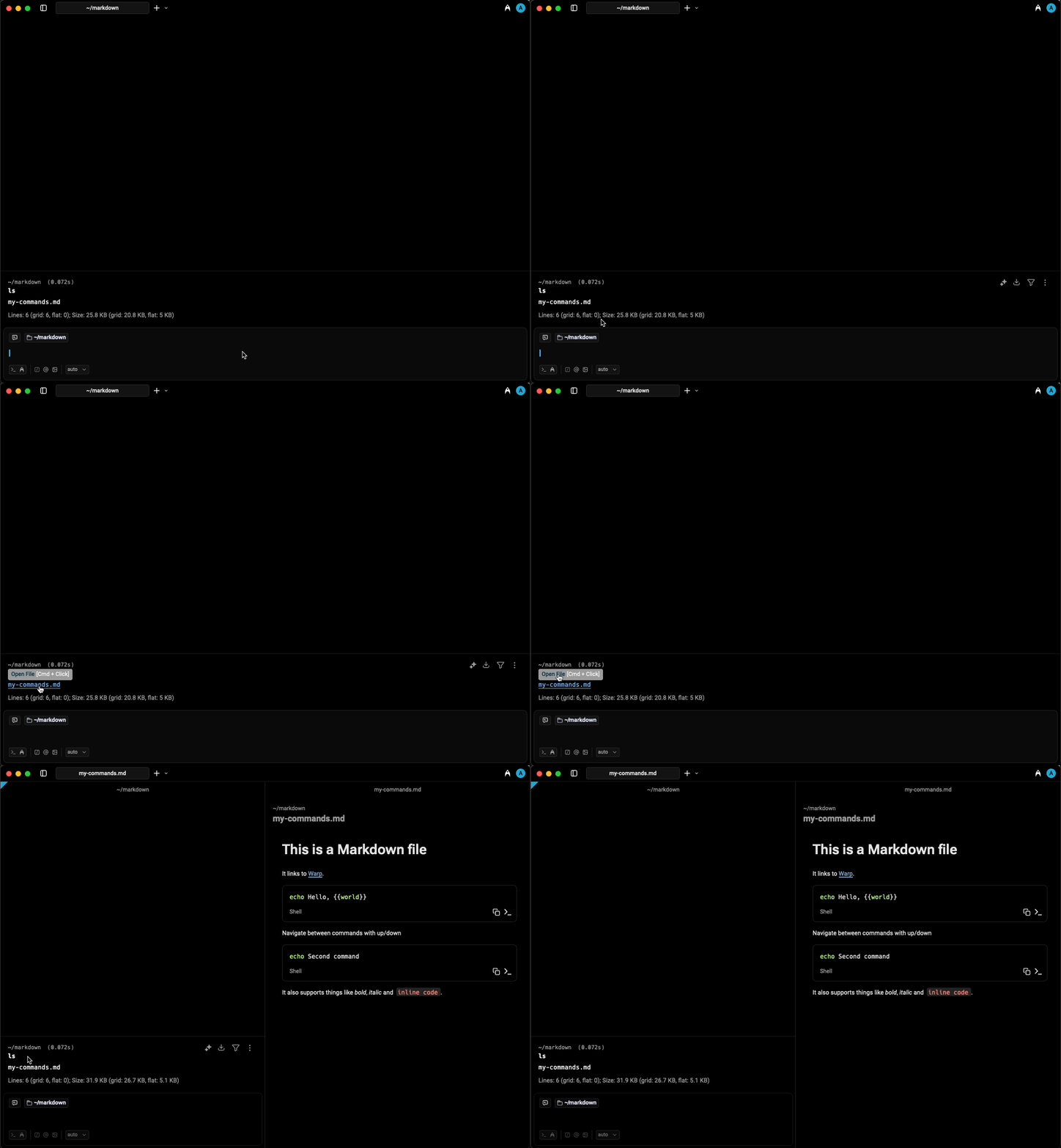 <figcaption>Opening a Markdown file via link tooltip.</figcaption> </figure> ### Markdown-viewing commands If you run a Markdown-viewing command like `cat myfile.md`, Warp will show a banner with a button to open the Markdown file. The following commands are considered Markdown viewers: * `cat` * `glow` * `less` ### Opening a Markdown file from Finder From Finder, you can open a Markdown file in Warp from the “Open With” menu that appears when right-clicking on the file. ### Toggling between editor and viewer You can toggle between the Markdown editor and viewer via the pane overflow menu. <figure> 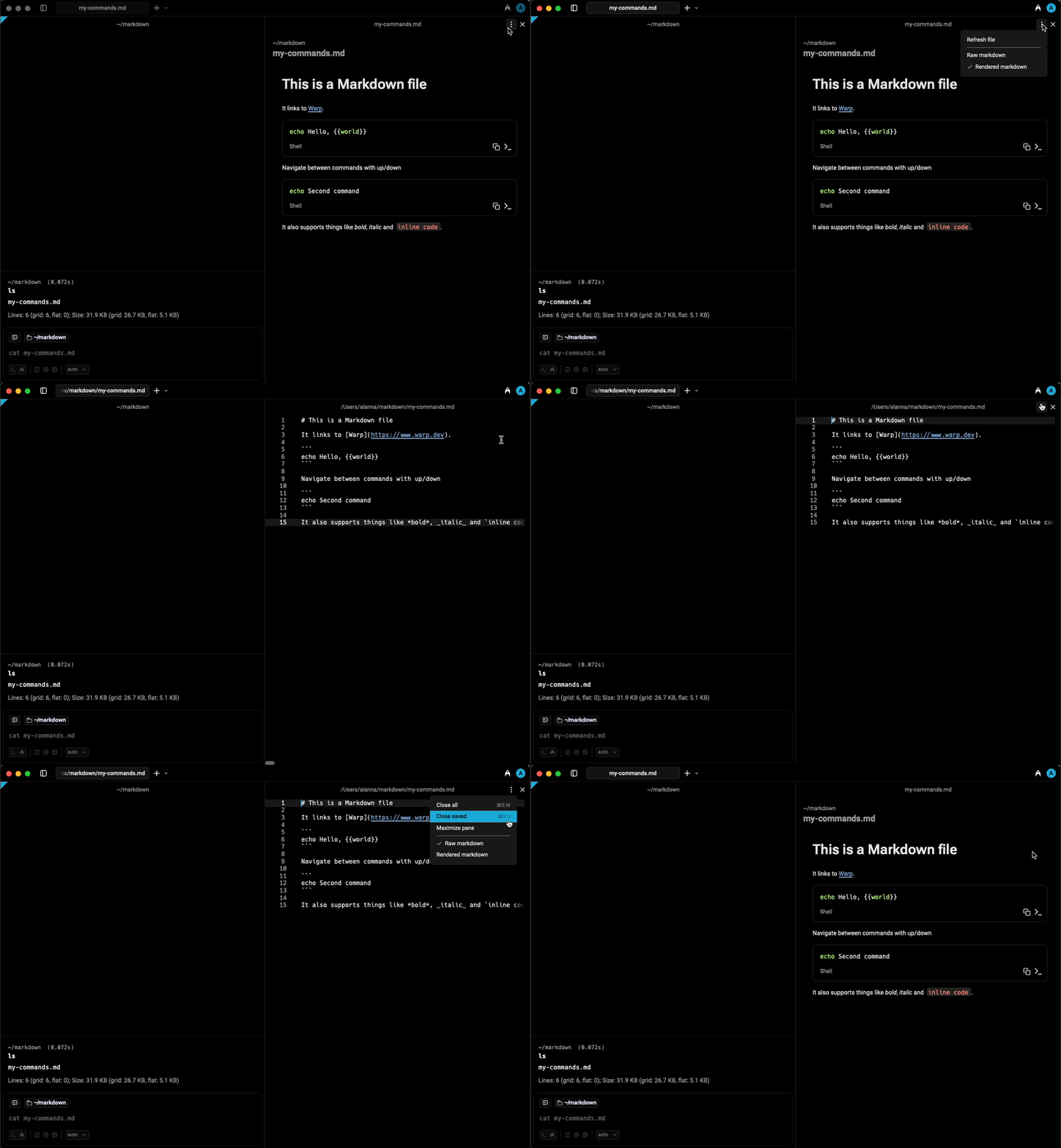 <figcaption>Toggling between editor and viewer.</figcaption> </figure> ## Shell commands in Markdown files Warp can run shell commands from Markdown code blocks in your active terminal session. Click the run icon `>_` to insert a command into the terminal input. :::note The shell command must be in a code block with three backticks ` ``` ` and not inline code for Warp to treat the code like a runnable command. ::: Markdown shell blocks also support keyboard navigation. There are two ways to enter the keyboard navigation mode: <Tabs> <TabItem label="macOS"> * Clicking on a shell block. * Pressing `CMD-UP` or `CMD-DOWN`. Once a shell block is selected, press `CMD-ENTER` to insert it into the terminal input. You can also use `UP`, `DOWN`, `CMD-UP`, and `CMD-DOWN` to navigate between shell blocks. While the Markdown file is focused, press `CMD-L` to switch focus back to the terminal without inserting a command. </TabItem> <TabItem label="Windows"> * Clicking on a shell block. * Pressing `CTRL-UP` or `CTRL-DOWN`. Once a shell block is selected, press `CTRL-ENTER` to insert it into the terminal input. You can also use `UP`, `DOWN`, `CTRL-UP`, and `CTRL-DOWN` to navigate between shell blocks. While the Markdown file is focused, press `CTRL-SHIFT-L` to switch focus back to the terminal without inserting a command. </TabItem> <TabItem label="Linux"> * Clicking on a shell block. * Pressing `CTRL-UP` or `CTRL-DOWN`. Once a shell block is selected, press `CTRL-ENTER` to insert it into the terminal input. You can also use `UP`, `DOWN`, `CTRL-UP`, and `CTRL-DOWN` to navigate between shell blocks. While the Markdown file is focused, press `CTRL-SHIFT-L` to switch focus back to the terminal without inserting a command. </TabItem> </Tabs> If the command contains any arguments using the curly brace `{{param}}` syntax, they will be treated as Workflow arguments. Learn more about [Workflows](/knowledge-and-collaboration/warp-drive/workflows/). <DemoVideo src="/assets/terminal/run-markdown-file-command.mp4" label="Demo of running two commands from a Markdown file in Warp" /> In addition, all shell and code blocks have a copy button to quickly copy the block's text to the clipboard. Code blocks without a set language, or one of the following languages, are treated as shell commands: `sh`, `shell`, `bash`, `fish`, `zsh`, `warp-runnable-command`. ## Mermaid diagrams Warp renders [Mermaid](https://mermaid.js.org/) diagrams in the markdown viewer. Add a fenced code block with the `mermaid` language tag and Warp converts it to a rendered SVG diagram automatically. ```` ```mermaid graph LR A[Start] --> B[End] ``` ```` [TODO: docs reviewer — screenshot of a rendered Mermaid diagram in the markdown viewer] ### Switching between raw and rendered Each Mermaid block includes a **Raw** and **Rendered** toggle. Use it to switch between the rendered diagram and the original Mermaid source without leaving the viewer. ### Render failures and timeouts If a Mermaid diagram cannot be rendered — for example, due to invalid syntax — Warp replaces the loading placeholder with a **Failed to render Mermaid diagram** notice. The same notice appears if rendering takes longer than 10 seconds. The notice is localized to the affected block; the rest of the document continues to render normally. Multiple Mermaid diagrams in the same file are independent — a failure in one does not affect others. Your original Mermaid source is always preserved. Copying, exporting, and undo/redo all operate on the authored code, not the failure notice. If rendering eventually succeeds after a timeout, Warp replaces the notice with the rendered diagram automatically.Open Markdown files in your terminal, run shell commands, and view rendered Mermaid diagrams.
Warp can be used for both editing and viewing rendered Markdown files in a split pane. Any local file with the .md or .markdown extension is treated as a Markdown file. Remote files are currently not supported. Turning on Settings > Features > General > Open Markdown files in Warp's Markdown viewer by default will make the Markdown viewer default, otherwise Markdown files will open in Warp's editor.
Opening a file link within a block
Section titled “Opening a file link within a block”For any link to a Markdown file within a block, you can open the file in Warp by CMD-clicking on the link, from the link tooltip, or the right-click context menu on the link.
For any link to a Markdown file within a block, you can open the file in Warp by CTRL-clicking on the link, from the link tooltip, or the right-click context menu on the link.
For any link to a Markdown file within a block, you can open the file in Warp by CTRL-clicking on the link, from the link tooltip, or the right-click context menu on the link.

Markdown-viewing commands
Section titled “Markdown-viewing commands”If you run a Markdown-viewing command like cat myfile.md, Warp will show a banner with a button to open the Markdown file.
The following commands are considered Markdown viewers:
catglowless
Opening a Markdown file from Finder
Section titled “Opening a Markdown file from Finder”From Finder, you can open a Markdown file in Warp from the “Open With” menu that appears when right-clicking on the file.
Toggling between editor and viewer
Section titled “Toggling between editor and viewer”You can toggle between the Markdown editor and viewer via the pane overflow menu.

Shell commands in Markdown files
Section titled “Shell commands in Markdown files”Warp can run shell commands from Markdown code blocks in your active terminal session. Click the run icon >_ to insert a command into the terminal input.
Markdown shell blocks also support keyboard navigation. There are two ways to enter the keyboard navigation mode:
- Clicking on a shell block.
- Pressing
CMD-UPorCMD-DOWN.
Once a shell block is selected, press CMD-ENTER to insert it into the terminal input. You can also use UP, DOWN, CMD-UP, and CMD-DOWN to navigate between shell blocks. While the Markdown file is focused, press CMD-L to switch focus back to the terminal without inserting a command.
- Clicking on a shell block.
- Pressing
CTRL-UPorCTRL-DOWN.
Once a shell block is selected, press CTRL-ENTER to insert it into the terminal input. You can also use UP, DOWN, CTRL-UP, and CTRL-DOWN to navigate between shell blocks. While the Markdown file is focused, press CTRL-SHIFT-L to switch focus back to the terminal without inserting a command.
- Clicking on a shell block.
- Pressing
CTRL-UPorCTRL-DOWN.
Once a shell block is selected, press CTRL-ENTER to insert it into the terminal input. You can also use UP, DOWN, CTRL-UP, and CTRL-DOWN to navigate between shell blocks. While the Markdown file is focused, press CTRL-SHIFT-L to switch focus back to the terminal without inserting a command.
If the command contains any arguments using the curly brace {{param}} syntax, they will be treated as Workflow arguments. Learn more about Workflows.
In addition, all shell and code blocks have a copy button to quickly copy the block's text to the clipboard.
Code blocks without a set language, or one of the following languages, are treated as shell commands: sh, shell, bash, fish, zsh, warp-runnable-command.
Mermaid diagrams
Section titled “Mermaid diagrams”Warp renders Mermaid diagrams in the markdown viewer. Add a fenced code block with the mermaid language tag and Warp converts it to a rendered SVG diagram automatically.
```mermaidgraph LR A[Start] --> B[End]```[TODO: docs reviewer — screenshot of a rendered Mermaid diagram in the markdown viewer]
Switching between raw and rendered
Section titled “Switching between raw and rendered”Each Mermaid block includes a Raw and Rendered toggle. Use it to switch between the rendered diagram and the original Mermaid source without leaving the viewer.
Render failures and timeouts
Section titled “Render failures and timeouts”If a Mermaid diagram cannot be rendered — for example, due to invalid syntax — Warp replaces the loading placeholder with a Failed to render Mermaid diagram notice. The same notice appears if rendering takes longer than 10 seconds.
The notice is localized to the affected block; the rest of the document continues to render normally. Multiple Mermaid diagrams in the same file are independent — a failure in one does not affect others.
Your original Mermaid source is always preserved. Copying, exporting, and undo/redo all operate on the authored code, not the failure notice.
If rendering eventually succeeds after a timeout, Warp replaces the notice with the rendered diagram automatically.